
About Pods
For information about pairing pods, see Pair Pods.

Your Plantiga pods each contain a 6 axis IMU, sample at 416 HZ, weigh less than 5 g, and can collect up to 2 Gigabytes of data.
Using your pods
- Charge your pods before collecting data. When the pods are docked and fully charged, the pod lights will turn green. The pods can collect up to 8 hours of data when fully charged.
- When the pods are docked and charging, the pod lights will be solid white. A full charge can take up to 2 hours.
- When the pods are docked and uploading data, the lights will blink white.
- If the pods are docked blinking red, the sensors have encountered a hardware or battery issue (eg. overheating or battery drain irregularities).
- In most cases, the sensor will auto-restart within 10–30 seconds and return to pulsing white.
- If sensors do not return to normal, remove and replace the pods to ensure a good connection.
- If it continues blinking red, it may be in a persistent error state. Please reach out to our team for support.
- When the pods are not docked, they will blink green when they have adequate remaining charge and blink red when there is an error or the battery is below 20%. The pods turn themselves off when the charge is below 5% to preserve collected data.
- Pods need to be synchronized daily to ensure that data timestamps are correct - make sure the pods are docked each day before use to allow them to synchronize.
- Dock the pods or keep them in the carry case or travel dock when not in use to prevent the battery from draining and the memory from filling up.
Managing your pods
-
Pods currently paired to a person will be displayed next to their name in the People page.
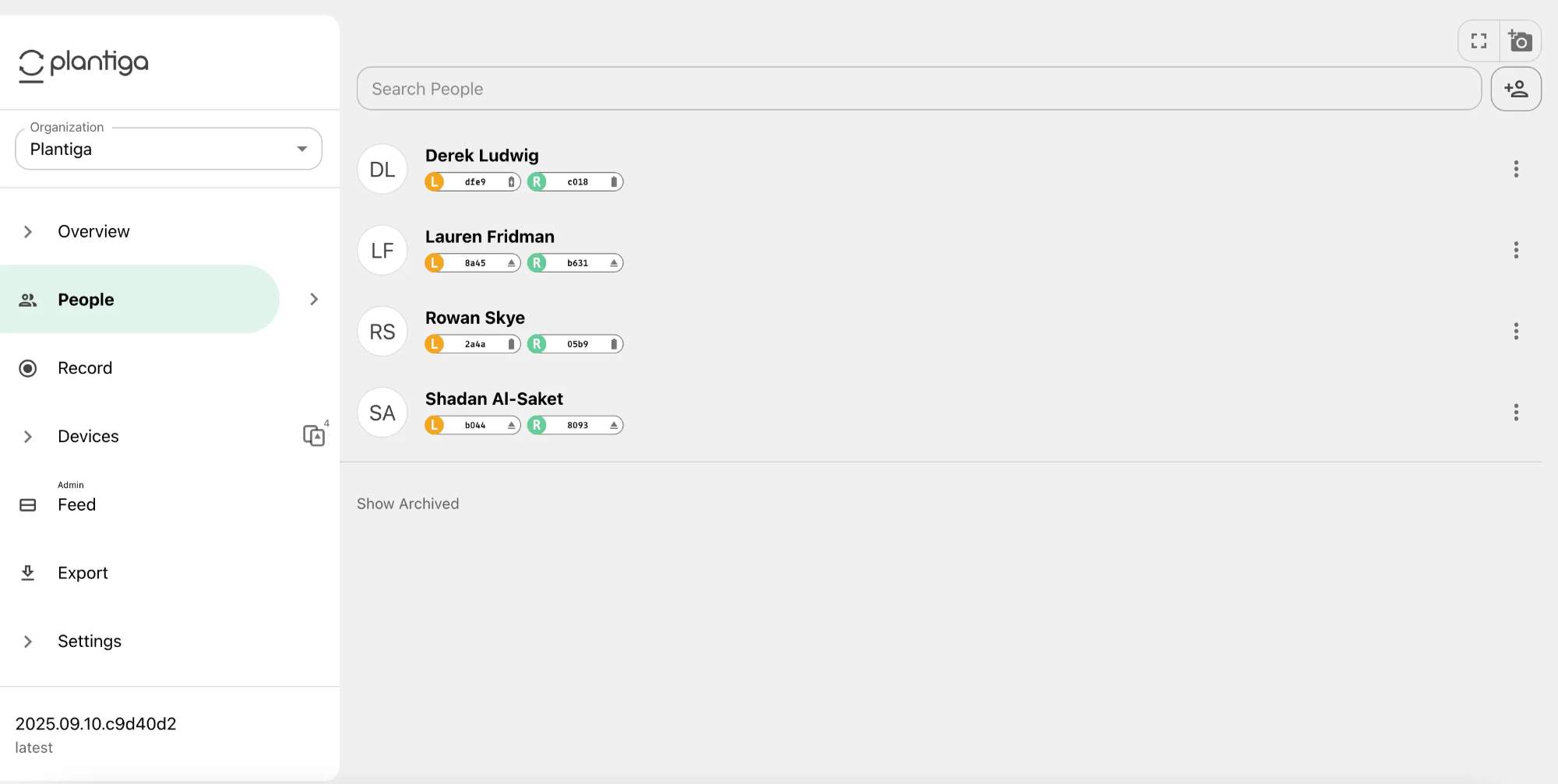
- These pod chips will show the pod label and status.
- 🔼 The triangle icon means the pod is undocked
- 🔋 The battery icon means the pod is docked and charging. Mouse over the icon to see the battery percentage.
- ✅ The checkmark means the pod is docked and fully charged.
-
Navigate to Pods in the sidebar to see all the pods for your team.
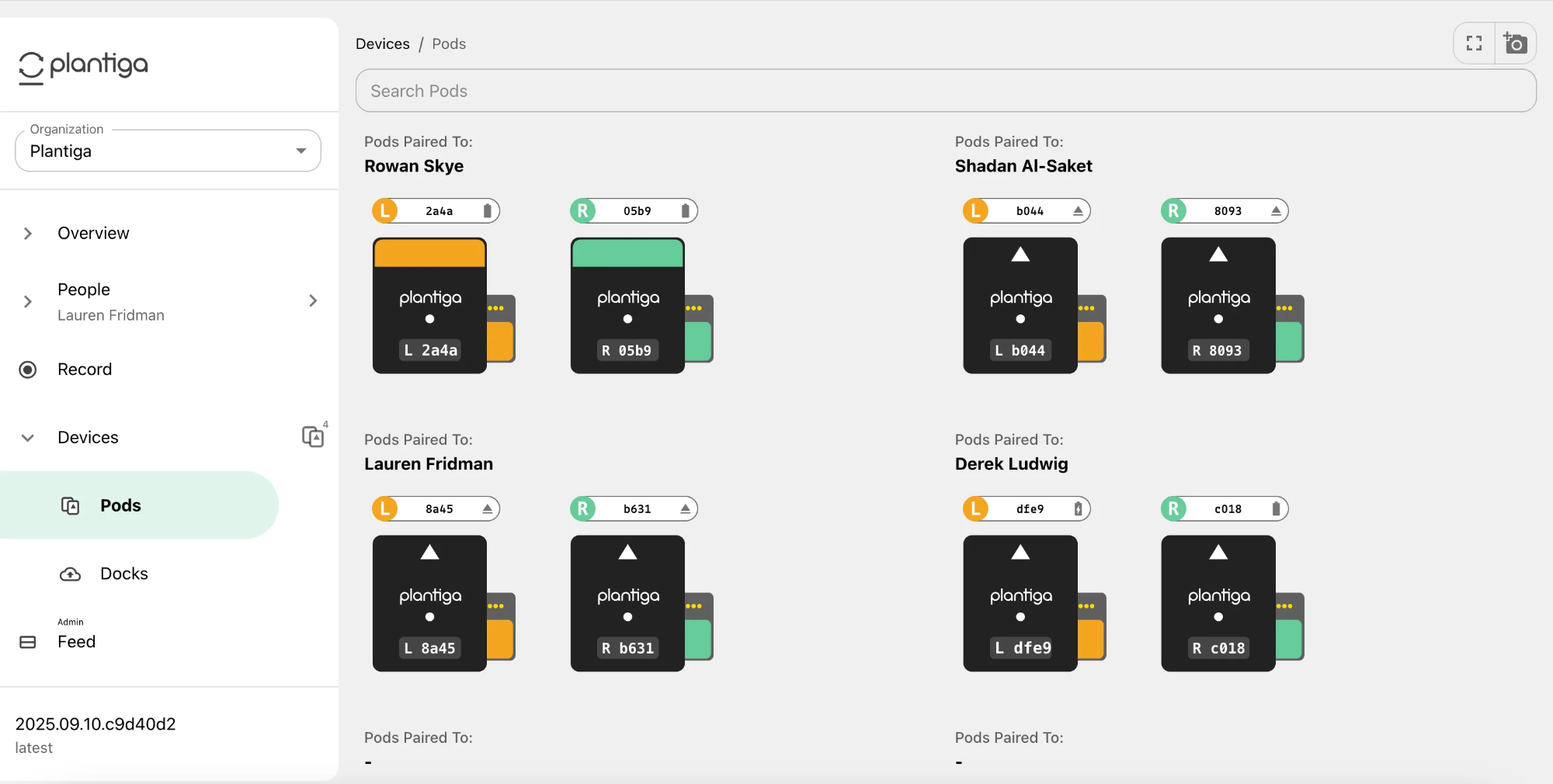
On this page you can see details for each pod, including the ID, the pairing status, the Pod and Dock firmware versions, and when the pod was last docked.
Click EDIT to change the pod label (e.g. to a person’s name or your own numbering system).
Pods can be deleted from this page if they have been lost or replaced.
-
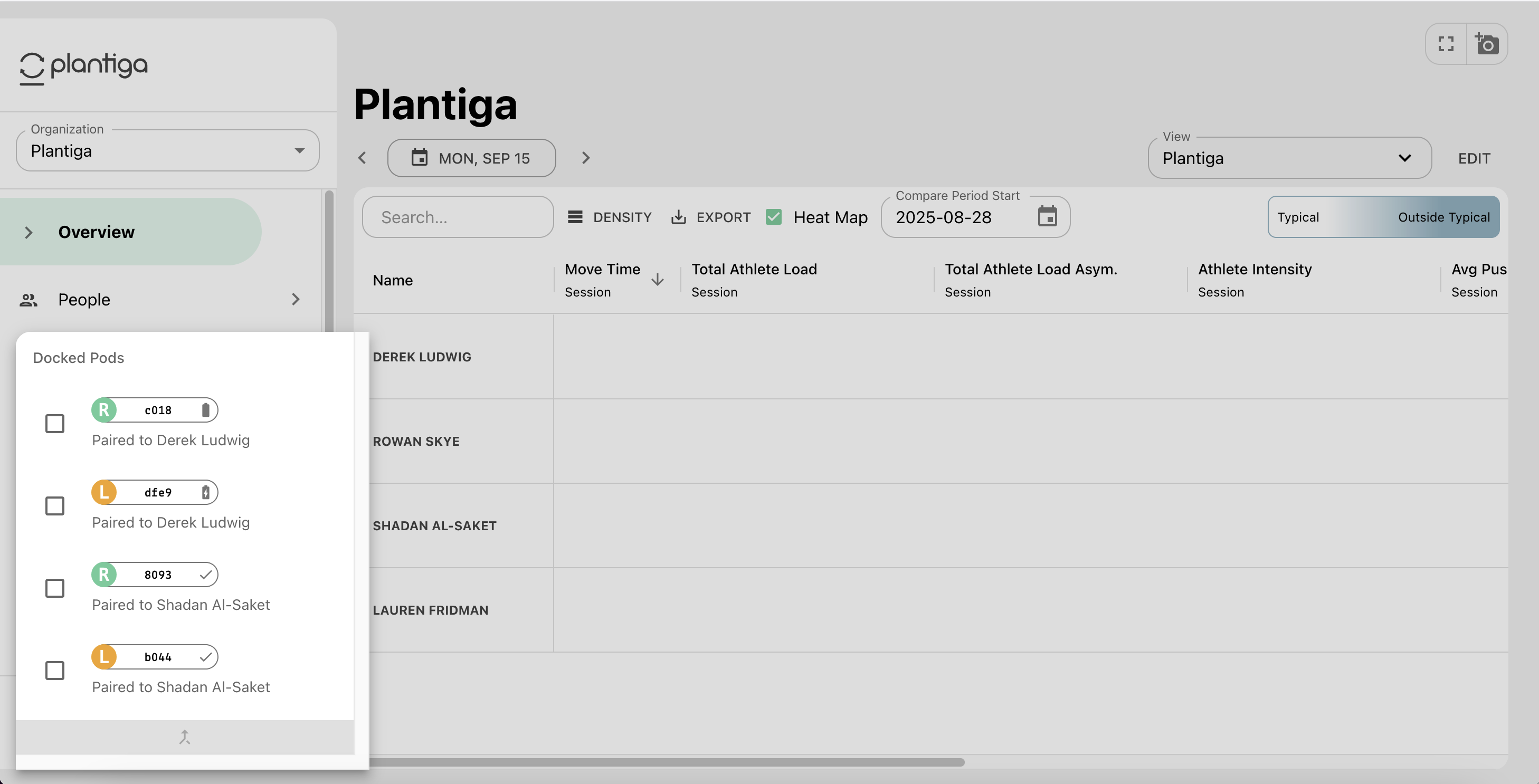
Click on the Pod icon next to Devices on the sidebar to show all pods that are currently docked, and who they are paired to.
Tip: Check out the Care and Maintenance page to learn how to care for your pods.