
About Home Dock
Your dock charges your pods and uploads data over WiFi.
Using your Home dock
- Set up your Home Dock with the instruction in Getting Started. Note that any time you move the Home Dock to a location with a different WiFi network, you will need to connect it to the new WiFi.
-
Insert the pods into the dock with the black side facing up, in the direction of the arrow on the pods. When the pods are properly inserted, they will light up.
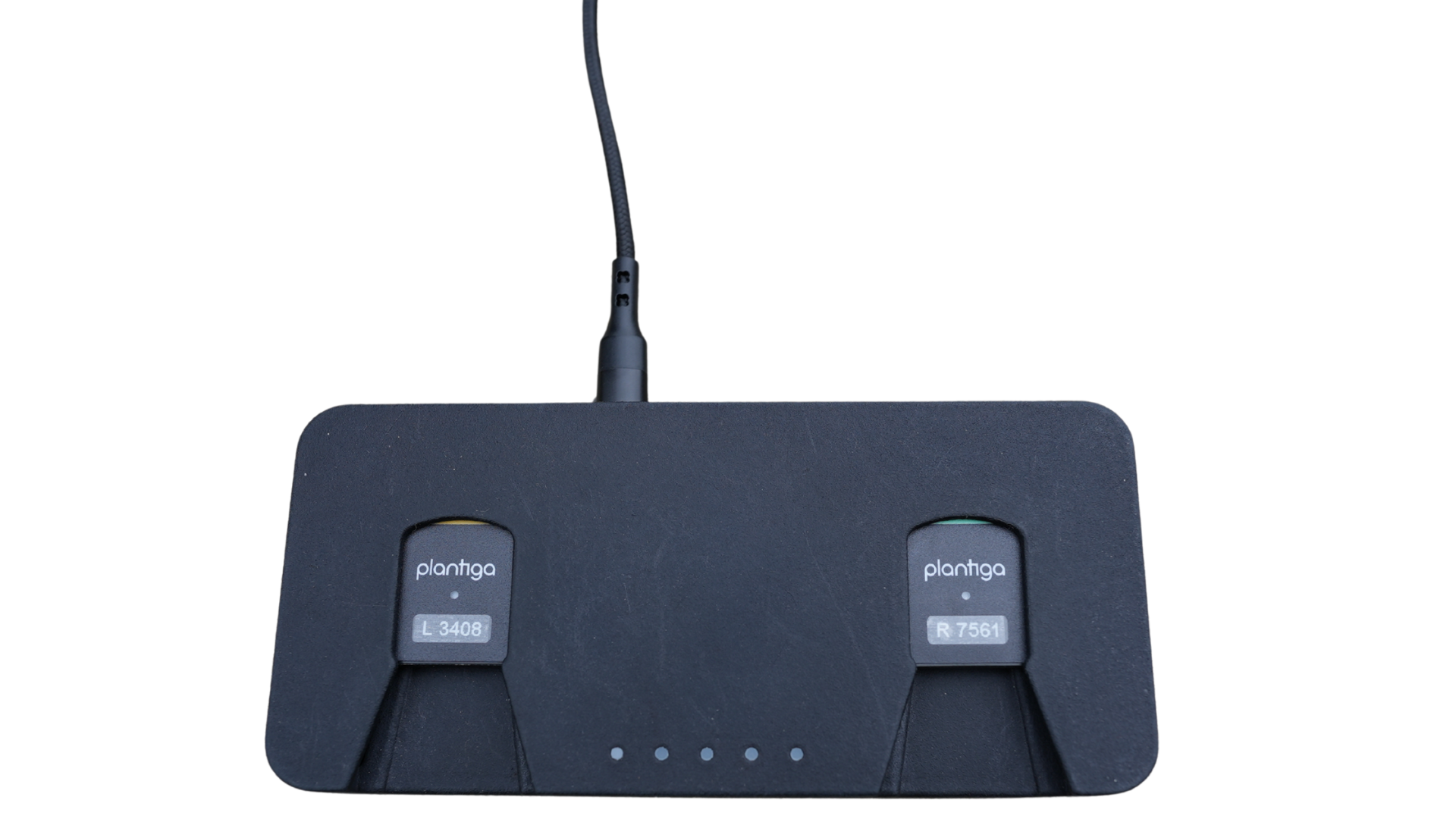
Dock Lights
- When the dock is powered on, the light on the back next to the cord will be white. and the dock lights will pulse white.
- When pods are docked and data is uploading, the dock lights will pulse white from left to right.
- When data has finished uploading, the dock lights will be solid white.
- If the dock requires setup, the dock lights will pulse blue.
- If the middle light on the dock turns red, there is an issue with the dock settings - unplug for 30 seconds and then plug back in.
Caring for your dock
- Use only the plug provided by Plantiga to power your Dock.
- If you have connectivity issues between your pods and dock, clean the gold dock pins by blowing on them gently.
- Don’t expose the dock to moisture, strong magnets, or extreme temperatures.